






Ubuntu安装和配置Samba
什么是Sambak呢?
Samba is the standard Windows interoperability suite of programs for Linux and Unix.
有了samba呢我们就可以在windows上去查看,修改远程linux系统上的文件了
ps:不建议大家在windows进行创建,然后弄到linux里用。如果非要这么做的话,注意格式编码问题。
曾经我在windows上编写的android的开机动画描述脚本,检查检查再检查都觉得没错,最后败在了编码上。
官网地址
安装
sudo apt-get install samba samba-common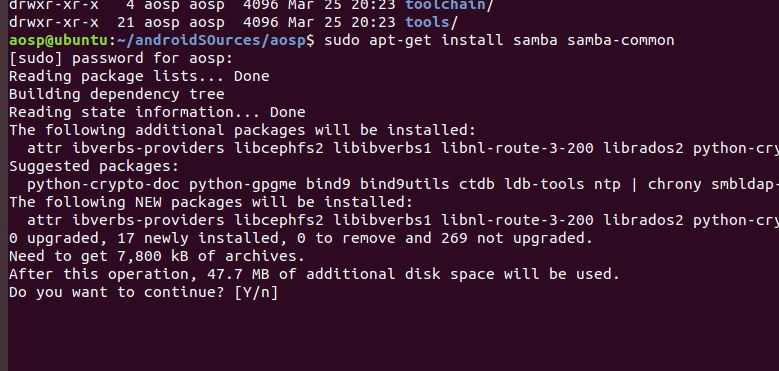
设置密码
sudo smbpasswd -a aospaosp是我的用户名
aosp@ubuntu:~/androidSOurces/aosp$ sudo smbpasswd -a aosp
[sudo] password for aosp:
New SMB password:
Retype new SMB password:
Added user aosp.
看到提示了,added user aosp
这个呢,是ed格式,也就已经添加了嘛。
修改配置文件
一般配置文件是在etc目录下
我们到etc下找找
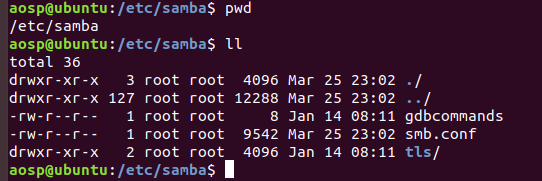
就是个路径了
我们打开smb.conf
我全部粘贴上来吧
#
# Sample configuration file for the Samba suite for Debian GNU/Linux.
#
#
# This is the main Samba configuration file. You should read the
# smb.conf(5) manual page in order to understand the options listed
# here. Samba has a huge number of configurable options most of which
# are not shown in this example
#
# Some options that are often worth tuning have been included as
# commented-out examples in this file.
#  - When such options are commented with ";", the proposed setting
#    differs from the default Samba behaviour
#  - When commented with "#", the proposed setting is the default
#    behaviour of Samba but the option is considered important
#    enough to be mentioned here
#
# NOTE: Whenever you modify this file you should run the command
# "testparm" to check that you have not made any basic syntactic
# errors.

#======================= Global Settings =======================

[global]

## Browsing/Identification ###

# Change this to the workgroup/NT-domain name your Samba server will part of
   workgroup = WORKGROUP

# server string is the equivalent of the NT Description field
	server string = %h server (Samba, Ubuntu)

# Windows Internet Name Serving Support Section:
# WINS Support - Tells the NMBD component of Samba to enable its WINS Server
#   wins support = no

# WINS Server - Tells the NMBD components of Samba to be a WINS Client
# Note: Samba can be either a WINS Server, or a WINS Client, but NOT both
;   wins server = w.x.y.z

# This will prevent nmbd to search for NetBIOS names through DNS.
   dns proxy = no

#### Networking ####

# The specific set of interfaces / networks to bind to
# This can be either the interface name or an IP address/netmask;
# interface names are normally preferred
;   interfaces = 127.0.0.0/8 eth0

# Only bind to the named interfaces and/or networks; you must use the
# 'interfaces' option above to use this.
# It is recommended that you enable this feature if your Samba machine is
# not protected by a firewall or is a firewall itself.  However, this
# option cannot handle dynamic or non-broadcast interfaces correctly.
;   bind interfaces only = yes


#### Debugging/Accounting ####

# This tells Samba to use a separate log file for each machine
# that connects
   log file = /var/log/samba/log.%m

# Cap the size of the individual log files (in KiB).
   max log size = 1000

# If you want Samba to only log through syslog then set the following
# parameter to 'yes'.
#   syslog only = no

# We want Samba to log a minimum amount of information to syslog. Everything
# should go to /var/log/samba/log.{smbd,nmbd} instead. If you want to log
# through syslog you should set the following parameter to something higher.
   syslog = 0

# Do something sensible when Samba crashes: mail the admin a backtrace
   panic action = /usr/share/samba/panic-action %d


####### Authentication #######

# Server role. Defines in which mode Samba will operate. Possible
# values are "standalone server", "member server", "classic primary
# domain controller", "classic backup domain controller", "active
# directory domain controller".
#
# Most people will want "standalone sever" or "member server".
# Running as "active directory domain controller" will require first
# running "samba-tool domain provision" to wipe databases and create a
# new domain.
   server role = standalone server

# If you are using encrypted passwords, Samba will need to know what
# password database type you are using.
   passdb backend = tdbsam

   obey pam restrictions = yes

# This boolean parameter controls whether Samba attempts to sync the Unix
# password with the SMB password when the encrypted SMB password in the
# passdb is changed.
   unix password sync = yes

# For Unix password sync to work on a Debian GNU/Linux system, the following
# parameters must be set (thanks to Ian Kahan <<kahan@informatik.tu-muenchen.de> for
# sending the correct chat script for the passwd program in Debian Sarge).
   passwd program = /usr/bin/passwd %u
   passwd chat = *Enter\snew\s*\spassword:* %n\n *Retype\snew\s*\spassword:* %n\n *password\supdated\ssuccessfully* .

# This boolean controls whether PAM will be used for password changes
# when requested by an SMB client instead of the program listed in
# 'passwd program'. The default is 'no'.
   pam password change = yes

# This option controls how unsuccessful authentication attempts are mapped
# to anonymous connections
   map to guest = bad user

########## Domains ###########

#
# The following settings only takes effect if 'server role = primary
# classic domain controller', 'server role = backup domain controller'
# or 'domain logons' is set
#

# It specifies the location of the user's
# profile directory from the client point of view) The following
# required a [profiles] share to be setup on the samba server (see
# below)
;   logon path = \\%N\profiles\%U
# Another common choice is storing the profile in the user's home directory
# (this is Samba's default)
#   logon path = \\%N\%U\profile

# The following setting only takes effect if 'domain logons' is set
# It specifies the location of a user's home directory (from the client
# point of view)
;   logon drive = H:
#   logon home = \\%N\%U

# The following setting only takes effect if 'domain logons' is set
# It specifies the script to run during logon. The script must be stored
# in the [netlogon] share
# NOTE: Must be store in 'DOS' file format convention
;   logon script = logon.cmd

# This allows Unix users to be created on the domain controller via the SAMR
# RPC pipe.  The example command creates a user account with a disabled Unix
# password; please adapt to your needs
; add user script = /usr/sbin/adduser --quiet --disabled-password --gecos "" %u

# This allows machine accounts to be created on the domain controller via the
# SAMR RPC pipe.
# The following assumes a "machines" group exists on the system
; add machine script  = /usr/sbin/useradd -g machines -c "%u machine account" -d /var/lib/samba -s /bin/false %u

# This allows Unix groups to be created on the domain controller via the SAMR
# RPC pipe.
; add group script = /usr/sbin/addgroup --force-badname %g

############ Misc ############

# Using the following line enables you to customise your configuration
# on a per machine basis. The %m gets replaced with the netbios name
# of the machine that is connecting
;   include = /home/samba/etc/smb.conf.%m

# Some defaults for winbind (make sure you're not using the ranges
# for something else.)
;   idmap uid = 10000-20000
;   idmap gid = 10000-20000
;   template shell = /bin/bash

# Setup usershare options to enable non-root users to share folders
# with the net usershare command.

# Maximum number of usershare. 0 (default) means that usershare is disabled.
;   usershare max shares = 100

# Allow users who've been granted usershare privileges to create
# public shares, not just authenticated ones
   usershare allow guests = yes

#======================= Share Definitions =======================

# Un-comment the following (and tweak the other settings below to suit)
# to enable the default home directory shares. This will share each
# user's home directory as \\server\username
;[homes]
;   comment = Home Directories
;   browseable = no

# By default, the home directories are exported read-only. Change the
# next parameter to 'no' if you want to be able to write to them.
;   read only = yes

# File creation mask is set to 0700 for security reasons. If you want to
# create files with group=rw permissions, set next parameter to 0775.
;   create mask = 0700

# Directory creation mask is set to 0700 for security reasons. If you want to
# create dirs. with group=rw permissions, set next parameter to 0775.
;   directory mask = 0700

# By default, \\server\username shares can be connected to by anyone
# with access to the samba server.
# Un-comment the following parameter to make sure that only "username"
# can connect to \\server\username
# This might need tweaking when using external authentication schemes
;   valid users = %S

# Un-comment the following and create the netlogon directory for Domain Logons
# (you need to configure Samba to act as a domain controller too.)
;[netlogon]
;   comment = Network Logon Service
;   path = /home/samba/netlogon
;   guest ok = yes
;   read only = yes

# Un-comment the following and create the profiles directory to store
# users profiles (see the "logon path" option above)
# (you need to configure Samba to act as a domain controller too.)
# The path below should be writable by all users so that their
# profile directory may be created the first time they log on
;[profiles]
;   comment = Users profiles
;   path = /home/samba/profiles
;   guest ok = no
;   browseable = no
;   create mask = 0600
;   directory mask = 0700

[printers]
   comment = All Printers
   browseable = no
   path = /var/spool/samba
   printable = yes
   guest ok = no
   read only = yes
   create mask = 0700

# Windows clients look for this share name as a source of downloadable
# printer drivers
[print$]
   comment = Printer Drivers
   path = /var/lib/samba/printers
   browseable = yes
   read only = yes
   guest ok = no
# Uncomment to allow remote administration of Windows print drivers.
# You may need to replace 'lpadmin' with the name of the group your
# admin users are members of.
# Please note that you also need to set appropriate Unix permissions
# to the drivers directory for these users to have write rights in it
;   write list = root, @lpadmin
看几个重点的配置
详情请参考上面的说明啦
[global]
workgroup = WORKGROUP
server string = %h server (Samba, Ubuntu)
dns proxy = no
log file = /var/log/samba/log.%m
max log size = 1000
syslog = 0
panic action = /usr/share/samba/panic-action %d
server role = standalone server
obey pam restrictions = yes
unix password sync = yes
pam password change = yes
map to guest = bad user
......

[homes]
   comment = Home Directories
   browseable = no
......
[printers]
   comment = All Printers
   browseable = no
   path = /var/spool/samba
   printable = yes
   guest ok = no
   read only = yes
   create mask = 0700
主要就是这三部分了
[global] -- 指的是全局配置
[homes] -- 指的是用户自己有home目录共享配置
[printers] -- 打印机共享配置
其实还有
[自定义共享名称] --- 自定义共享配置
security = user #这里指定samba的安全等级。关于安全等级有四种:

share:用户不需要账户及密码即可登录samba服务器

user:由提供服务的samba服务器负责检查账户及密码(默认)

server:检查账户及密码的工作由另一台windows或samba服务器负责

domain:指定windows域控制服务器来验证用户的账户及密码。

passdb backend = tdbsam  # passdb backend (用户后台),samba有三种用户后台:smbpasswd, tdbsam和ldapsam.

smbpasswd:该方式是使用smb工具smbpasswd给系统用户(真实用户或者虚拟用户)设置一个Samba 密码,客户端就用此密码访问Samba资源。smbpasswd在/etc/samba中,有时需要手工创建该文件。

tdbsam:使用数据库文件创建用户数据库。数据库文件叫passdb.tdb,在/etc/samba中。passdb.tdb用户数据库可使用smbpasswd –a创建Samba用户,要创建的Samba用户必须先是系统用户。也可使用pdbedit创建Samba账户。pdbedit参数很多,列出几个主要的:

pdbedit –a username:新建Samba账户。

pdbedit –x username:删除Samba账户。

pdbedit –L:列出Samba用户列表,读取passdb.tdb数据库文件。

pdbedit –Lv:列出Samba用户列表详细信息。

pdbedit –c “[D]” –u username:暂停该Samba用户账号。

pdbedit –c “[]” –u username:恢复该Samba用户账号。

ldapsam:基于LDAP账户管理方式验证用户。首先要建立LDAP服务,设置“passdb backend = ldapsam:ldap://LDAP Server”

load printers 和 cups options 两个参数用来设置打印机相关。

除了这些参数外,还有几个参数需要你了解:

netbios name = MYSERVER  # 设置出现在“网上邻居”中的主机名

hosts allow = 127.  192.168.12.  192.168.13. # 用来设置允许的主机,如果在前面加”;”则表示允许所有主机

log file = /var/log/samba/%m.log #定义samba的日志,这里的%m是上面的netbios name

max log size = 50 # 指定日志的最大容量,单位是K
我们这里是配置一下androidSources这个目录共享一下
windows通过账号密码,就可以访问
跟外插一个硬盘一样
在global节点加入
security = user
ubuntu下配置文件默认没有这句,这个是自己填上去的。
表示指定samba的安全等级,安全等级分别有四种:
share(其他人不需要账号密码即可访问共享目录)、
user(检查账号密码)、
server(表示检查密码由另外一台服务器负责)、
domain(指定Windows域控制服务器来验证用户的账号和密码)
注: samba 4 不再支持 security = share
(查看版本 smbd --version)
在配置文件后面追加
[androidSources]
# 描述,任意写吧
comment = androidSOurces share
# 是否可以浏览
browseable = yes
# 路径
path = /home/aosp/androidSOurces
# 上传文件的权限
create mask = 0700
# 创建目录的权限
directory mask = 0700
# 用户是谁,多个用户用逗号隔开
# 如果不指定,谁都可以访问
valid users = aosp
# 是否公开
public = yes
# 是否可用
available = yes
# 是否可以写
writable = yes
重启服务
service smbd restart测试
然后在windows我的电脑地址栏目输入\ip
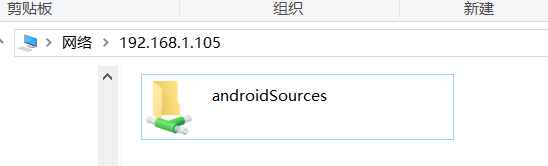
点击打开文件夹
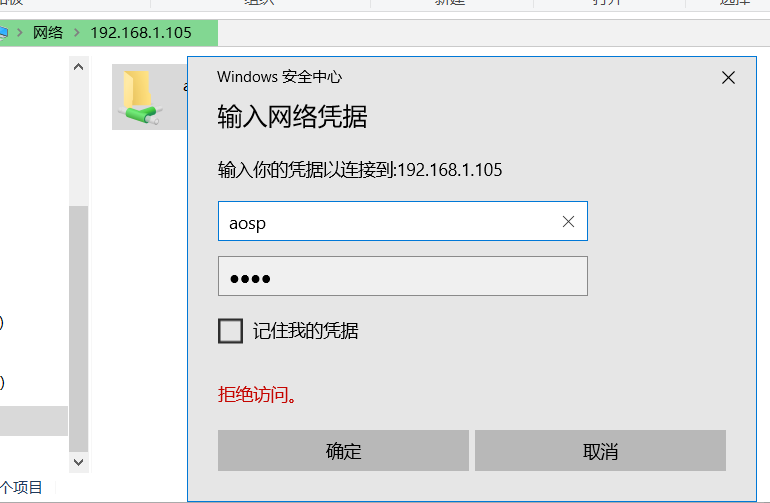
输入账号密码,就可以登录到了
查看自己ubuntu上的文件
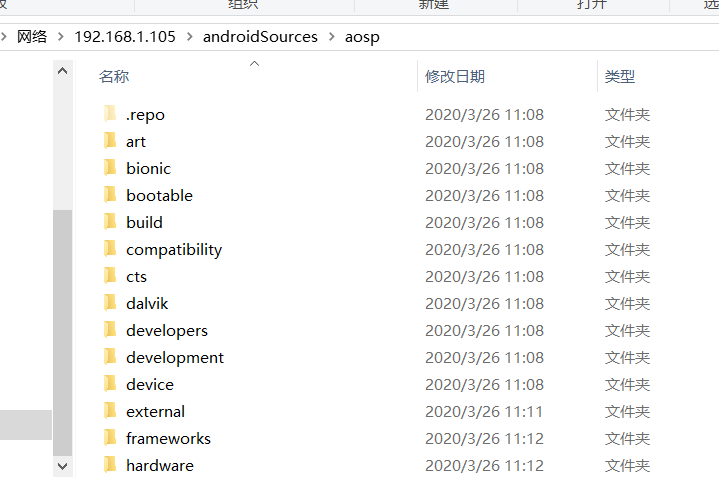
这些呢就是我在windows电脑上查看到ubuntu电脑上的android源码了。
所以,做aosp的同学,这个技能是必须要会的哦。